Start a session
- Open Work.
- Select New session. It opens as a new tab, so several threads run side by side.
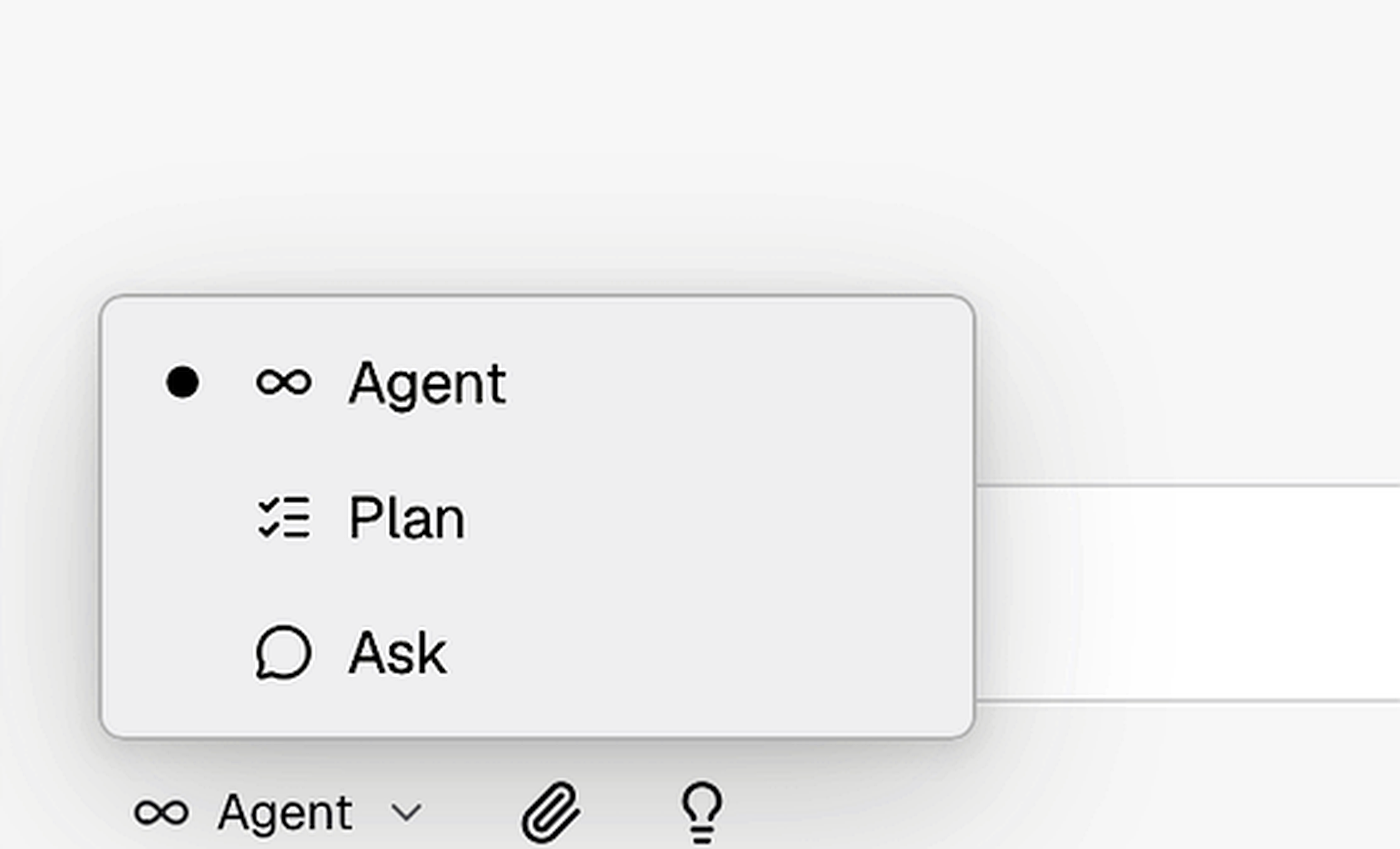
- Describe the outcome you want. Add context, attach a file, select a mode, or switch the model selector to Genius before sending.
- Select Send or press Enter (Shift+Enter adds a line break). After the first reply, Bright names the session for you; it shows up in the Sessions list.
Be specific about what Bright may do: whether it may use tools, change data, or contact external services.
Keep sessions findable
Hover a session row in the Sessions panel to reveal its actions:- Pin keeps a session one click away. Pinned sessions gather in a Pinned group at the top of the panel and stay in your recent flow too, so a busy day never buries them. Select Unpin to return a session to the flow.
- Actions (the row’s overflow menu) opens Rename: type the new name, then press Enter to save or Escape to cancel. Bright’s automatic name is a starting point, not a commitment.
Pick a mode
The mode selector sits at the bottom left of the composer. It controls how much Bright is allowed to change in your workspace.
Mental model: Ask = questions. Plan = strategy. Agent = getting things done.
You don’t have to move through every mode every time. Many people work predominantly in Agent whether they’re asking basic questions or planning a major refactor. Limiting scope with Ask or Plan is a good way for non-developers to keep Bright from creating or changing project artifacts until they’re ready.
Bright can explain the modes itself. Send this in any session:
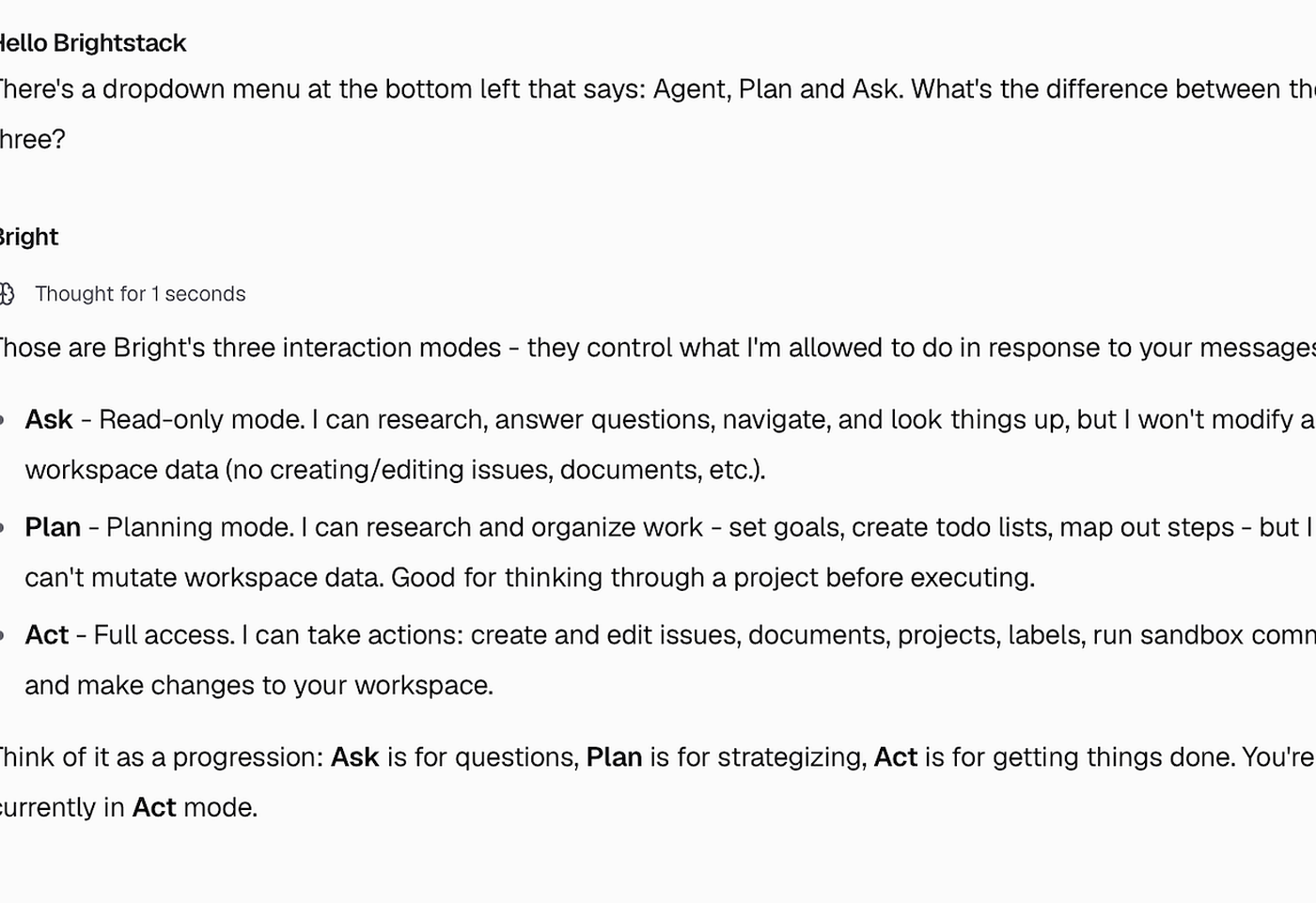
In some responses Bright may describe Agent mode as Act. The UI label is Agent; that’s the name to use when teaching or writing docs.
Two different things are called “Plan”
If you want a decomposition you can review before anything is written, use Plan mode. If you want the sub-issues created for you, use the Plan button on the issue and read every approval card before accepting it.
Add context three ways
- Attach file adds local source material to the message.
- Mention (type
@) inserts a built-in specialist, a custom agent, or another session as context. - Skill (type
/) inserts a skill. The catalog grows as you connect apps and add skills of your own.
Who does the work
Bright is the manager agent. It keeps the goal, hands each piece of work to the right specialist, and pulls the results into one answer.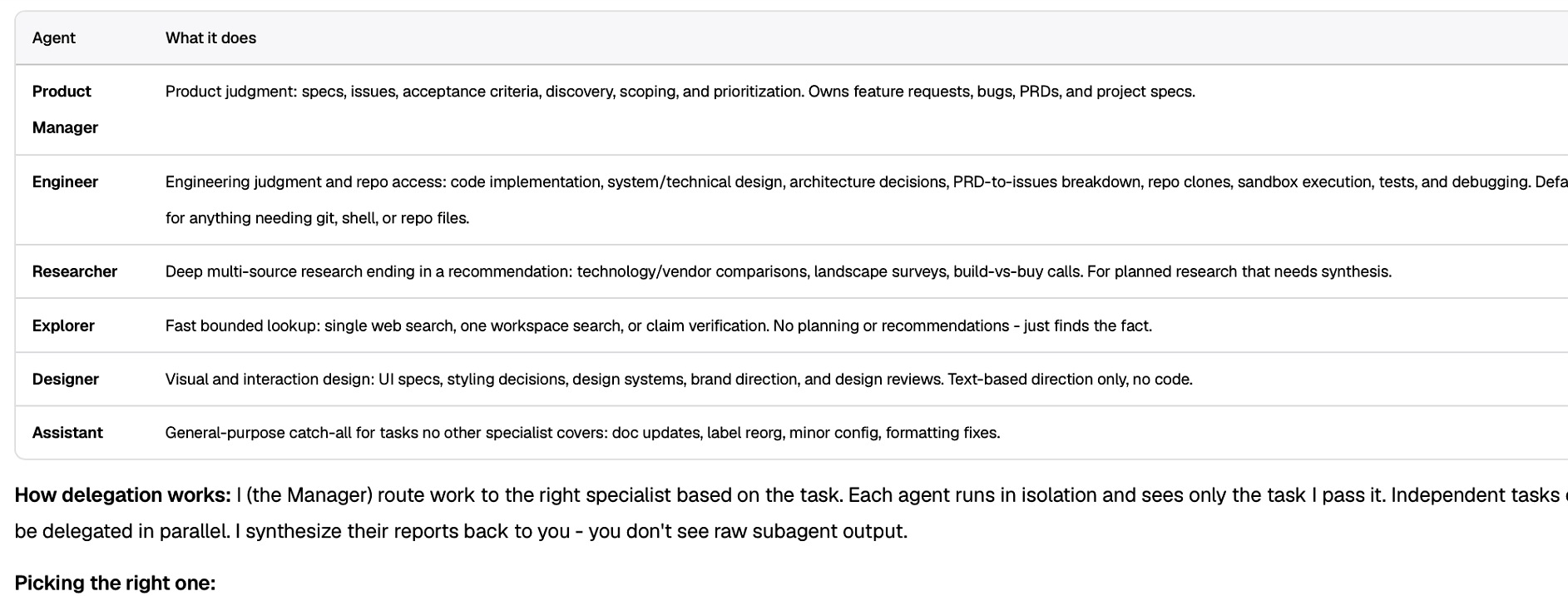
Your workspace’s roster may also include additional roles beyond the shipped set, listed alongside these. When a task splits, Bright reports which specialists are running and what each one owns.
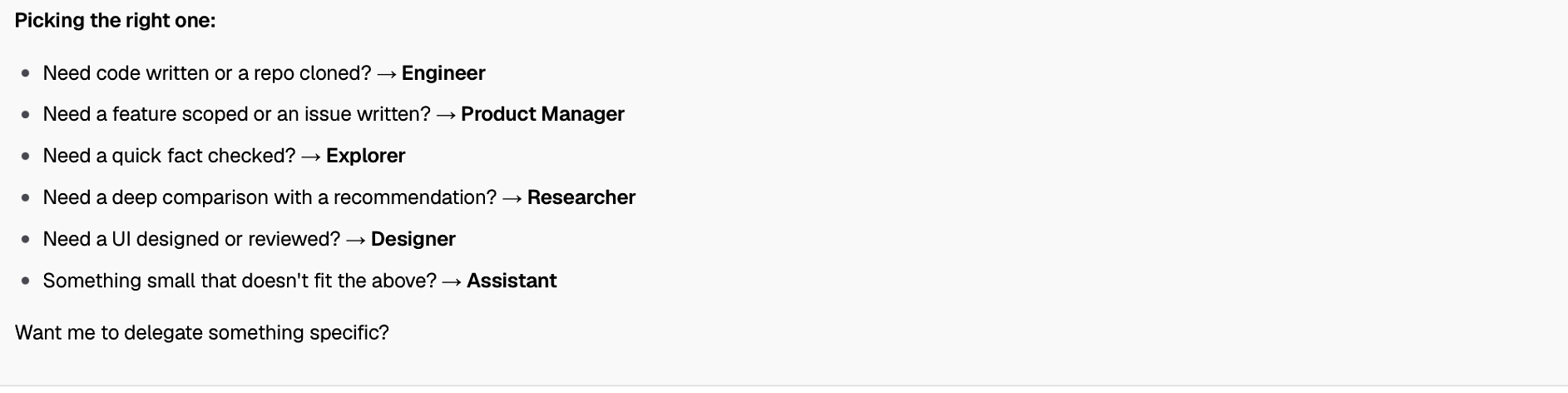 These agents implement Bright’s loop: define the goal, gather context, take action, verify, and repeat until the conditions are met. Loop engineering walks the loop step by step, Forge runs it behind five named gates, and Use specialists covers how to brief them.
Approvals keep you in control
When a session wants a protected tool, Bright asks first. Allow once approves the current request. The chevron beside it offers standing choices: Always allow (stop asking for that tool) or Always deny this tool (block it outright). Deny refuses one request without setting a rule. Read the named tool and the intended action before approving; denying access may prevent the task from finishing. Nothing ships without a check.Tips
- Ask Bright to take one issue end to end: research, plan, build, review.
- Ask a research question in Ask mode and watch the citations come back.
- Keep a session open and iterate. The thread remembers the goal, the decisions, and the context.
Good to know
- Each new session opens as its own tab, and Bright names it after the first reply.
- Enter sends; Shift+Enter adds a line break. While Bright is working, Stop response halts the turn without closing or archiving the session.
- A mention and a skill shape a message; neither one grants connector access or skips an approval.
- Plan mode never writes. The Plan button on an issue does, one approval per write.