Create an issue
- Open Plan.
- Select New issue.
- Enter a title and a description, set properties as needed, then select Create issue.
What an issue carries
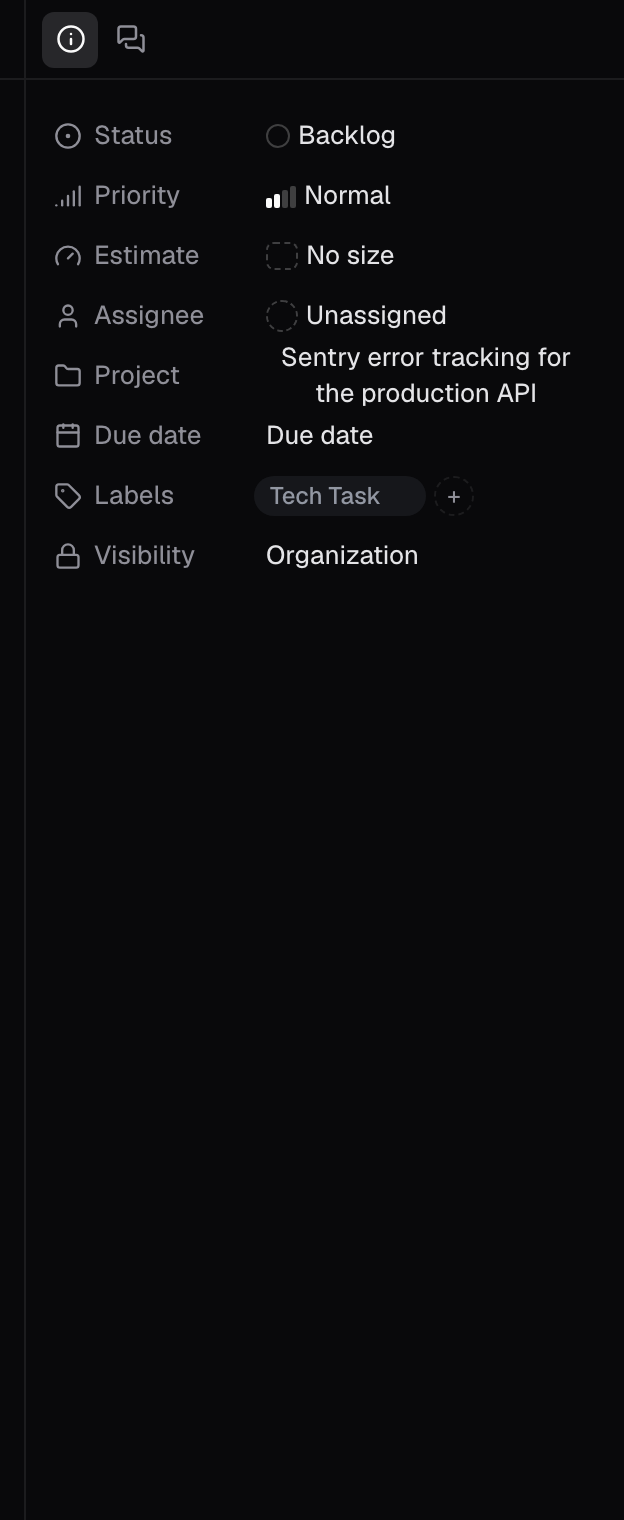
The property rail on the right of an issue:Status words differ between objects. An issue has Triage and Review; a project does not.
Find the right issues
The Plan sidebar holds four views over the same issues. Plan opens on What’s next.- Triage is incoming work, decided one issue at a time. It is a queue.
- Backlog is accepted work not committed to. It is a plain list.
- Issues is everything committed, Planned through Done and Cancelled. Closed work drops off two weeks after its last touch. Switch between list and board.
- What’s next is what to pick up right now: Review first, then In progress, then Planned, closest to done leading. Switch between list and board.
Sub-issues keep the views honest. With the Show sub-issues toggle off, a sub-issue folds into its parent’s row; a sub-issue whose parent is filtered out keeps its own row, so no work silently disappears. To see the breakdown, open a parent issue and read its Sub-issues section, shown as a count such as 0/3.
Work an issue
- Plan opens the issue in context chat to scope the work.
- Build starts build-oriented work in the same chat.
- Add sub-issue splits the task into smaller ones.
- Links holds the resources the work needs. Press Add, choose the kind, pick the record, then select Add link.
- Copy link and Copy to Prompt share the issue and its context elsewhere.
- Comment posts to the issue’s thread, described below.
Discuss and track an issue
Every issue ends with a Comments thread. People and agents can both post there, so a specialist’s update and a teammate’s question sit in one place. Write in the box labelled Comment on this issue, then select Comment or press Cmd+Enter. Hover one of your own comments to Edit or Delete it. Above the thread, Activity records when the issue was created and when it was last updated.How issues fit the rest
- Projects group issues into initiatives: Projects.
- Chat does the work. Ask Bright to take an issue end to end: Sessions and modes.
- Documents hold the context an issue needs: Documents.
Good to know
- An issue has seven statuses: Triage, Backlog, Planned, In progress, Review, Done, and Cancelled. A project has no Triage or Review.
- Priority is Urgent, High, Normal, or Low. Estimate (filtered as Effort) is XS, S, M, L, or XL.
- Plan opens on What’s next.
- Closed work drops off the Issues view two weeks after its last touch.
- Issues and What’s next switch between list and board. Triage is a queue and Backlog a plain list.
- A parent issue shows its sub-issues as a done/total count, such as 0/3.
- Every issue has a Comments thread for people and agents, and an Activity line with its created and updated times.